
Automated App Testing with Appium and Cucumber BDD

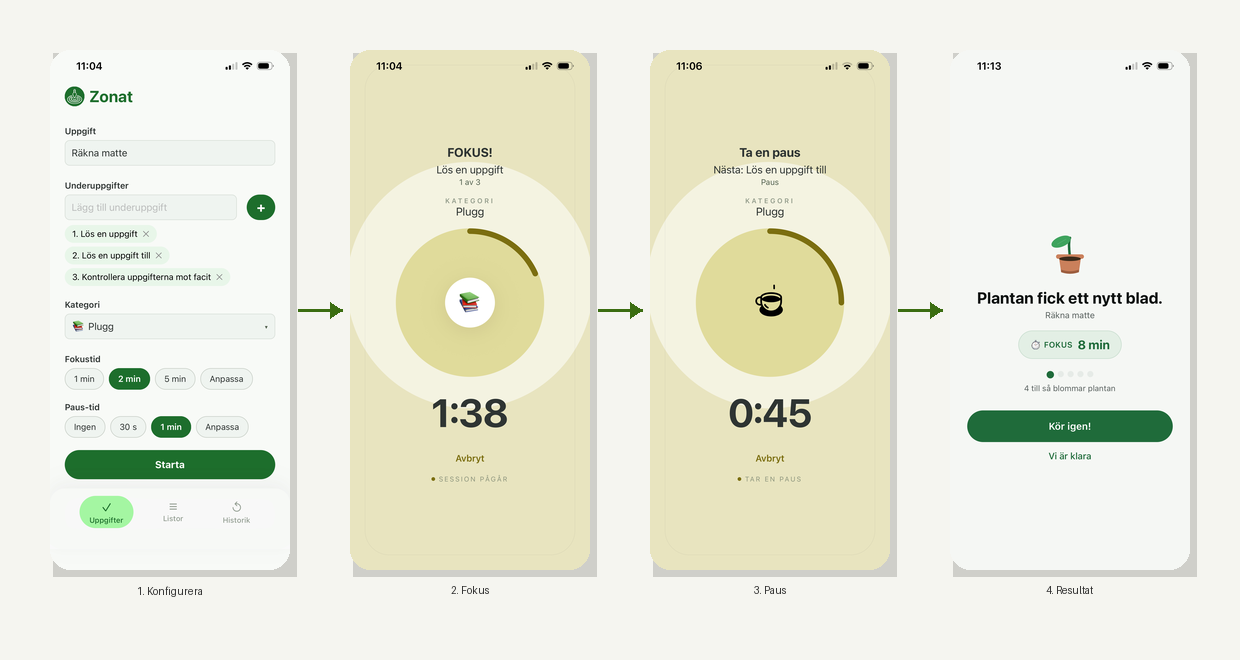
I wanted to explore how to write automated app tests for Android and iOS using Appium and Cucumber BDD. To do that, I needed an app to test, so I started writing one together with my friend Claude. I wanted to build something useful for someone close to me who struggles with focus and concentration, so I made a productivity timer for managing tasks and work/break cycles.
Since I'm on a PC, I wrote the app in React Native. Once the app was working, I could get to the part I was most curious about: automating app tests.
@category
Scenario Outline: Selected category is shown in the form
  Given the app is started
  When the user selects the category "<category>"
  Then the selected category "<category>" should be selected

  Examples:
    | category     |
    | Plugg        |
    | Träning      |
    | Hem          |
    | Socialt      |
    | Mental hälsa |
    | Övrigt       |
I wrote the tests as Gherkin scenarios, which read close to how the app is used. Cucumber maps them to Java step definitions, where each step becomes a method, and page objects keep the element locators for each screen in one place, separate from the test logic. The scenarios cover the full workflow: adding tasks and subtasks, running timer cycles, saving templates, and verifying history. Here are a few things I had to consider:
1. React Native updates the UI constantly
The first challenge appeared immediately: Appium waits by default for the UI to settle before registering a click. But a running timer updates the UI every second, which caused clicks to hang for several seconds. Setting waitForIdleTimeout = 0 disables that wait. Combined with implicitlyWait(Duration.ZERO) and explicit WebDriverWait polling, the tests became fast and reliable.
2. Locators that depend on Android API level
On Android, React Native Text elements exposed their text content differently depending on API level: via content-desc on API 33 (the CI emulator) and text on API 36 (local emulator). XPath attributes like @text simply didn't work across all environments. The consistent solution was UiSelector via UIAutomator2:
AppiumBy.androidUIAutomator("new UiSelector().text(\"Start\")")3. iOS: testID is not accessibilityLabel
On iOS, Appium's accessibility id strategy matched against accessibilityLabel and not testID. Elements that only had a testID were not found. The fix was NSPredicate with identifier, which maps to iOS accessibilityIdentifier (React Native's testID):
@iOSXCUITFindBy(iOSNsPredicate = "identifier == 'timerModeLabel'")4. CI with a slow emulator
In GitHub Actions the tests ran on an Android API 33 emulator with software rendering (swiftshader), which took around eight minutes to boot. Timeouts needed to be set high, and system dialogs that appear during startup needed to be handled automatically. The built APK and Appium driver were cached separately to keep run times down when only test code changes.
5. Add testID and accessibilityLabel to your app code
For stable tests, it matters what you put in the app code itself. Elements that the user interacts with should have a testID set in React Native, which maps to accessibilityIdentifier on iOS and resource-id on Android. It also helps to set accessibilityLabel, which Appium's accessibility id strategy uses on both platforms. It maps to content-desc on Android and accessibilityLabel on iOS. Without these, you end up relying on text content or element structure to locate elements, which is brittle and breaks easily when the UI changes.
What took the most time wasn't writing the tests themselves; it was understanding the differences between platforms and API levels. Getting the locator strategy and wait configuration right is what determines whether Appium tests are stable in practice. But the exploration was worth it.
If you're curious about the app itself, feel free to reach out. I'm happy to share it.